How to clear cache on a Fire TV Stick, Google TV and Android TV
Clearing cache frees storage and fixes many apps that freeze or misbehave. It deletes temporary files only: you stay signed in, and nothing you set up is lost.
Fire TV Stick, Fire TV Cube and Fire TV smart TVs
Every app at once
Newer Fire OS builds have a one-step option. Go to Settings → Applications → Clear all Application Caches and confirm. The confirmation tells you how much space you'll get back.
Amazon added it in 2025 and it reached the Fire TV Cube, Fire TV Stick 4K and 4K Max first, so some models don't have it yet. If you don't see it, clear apps one by one.
One app
- Open Settings → Applications → Manage Installed Applications.
- Select the app.
- Choose Clear Cache.
Start with the apps you use most: streaming apps keep the biggest caches. On the newest Fire TV Select models, which run Amazon's Vega OS, the menu is called Manage Installed Apps.
Google TV (Chromecast with Google TV, Google TV Streamer, Google TV sets)
Every app at once
Google TV can clear every app's cache in one go: Settings → System → Storage → Internal shared storage → Cached data, then OK. Google's help page notes this removes temporary data only.
One app
- Open Settings → Apps.
- Pick the app. If it isn't listed, choose See all apps.
- Select Clear cache, then OK.
Older Android TV sets
TV makers move these menus around, and Google doesn't document one path for all of them. On most sets the app list is under Settings → Device Preferences → Apps or Settings → Device → Apps: pick the app and look for Clear cache. Free storage on those sets sits under Settings → Device → Storage and reset.
Clear cache or clear data?
| Clear cache | Clear data / storage | |
|---|---|---|
| What goes | Temporary files | Everything the app stored |
| Logins | Kept | Lost: you sign in again |
| Settings in the app | Kept | Reset |
| When to use | Low storage, a slow or frozen app | An app still broken after clearing cache |
An app may open a little slower the first time after its cache is cleared, while it rebuilds it.
Check how much space you have
- Fire TV: Settings → My Fire TV → About → Storage (on Fire TV smart TVs, Device & Software instead of My Fire TV).
- Google TV: Settings → System → Storage.
- Older Android TV: Settings → Device → Storage and reset.
The faster way: from your iPhone
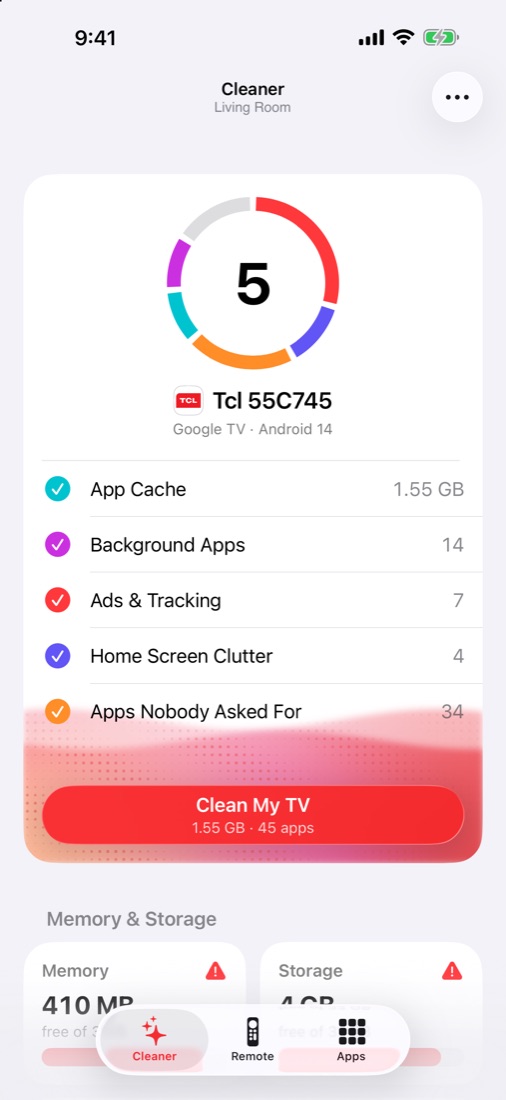
Clean My TV clears the cache of every app on the TV in one tap and closes apps running in the background, from your iPhone over Wi-Fi. It works on Fire TV and Google TV models that don't have a clear-all option. It also shows how much each app holds before you clean.
- Amazon Help: Clear app cache and data on Fire TV, Fire TV storage, Auto Offload
- AFTVnews: Fire TVs gain new option to clear all app caches with one click (September 5, 2025)
- Google: Clear cached data on Chromecast with Google TV, Google TV Help, Android Help: clear cache or storage, Android TV storage