Best Android TV and Google TV launcher: Projectivy vs FLauncher vs Wolf Launcher
A third-party launcher replaces your TV's home screen: the rows of sponsored shows go, and you get your own apps in the order you want. Three names come up most. They differ a lot in how alive they are and in how hard they are to install.
The short answer
- Projectivy is the one to try first on Android TV and Google TV. It's free, has no ads, was updated on November 2, 2026, and can take over the Home button without a computer.
- FLauncher is clean and open source, but it hasn't been updated since April 2023.
- Wolf Launcher is the name you see in Fire TV forums. It isn't on Google Play, installs only from APK mirrors, and Fire TV no longer lets it replace the home screen.
Side by side
| Projectivy | FLauncher | Wolf Launcher | |
|---|---|---|---|
| Price | Free; some features (custom wallpapers, advanced icon options) need a premium upgrade | Free | No official listing |
| Ads | None | None | Unknown |
| Open source | No | Yes (GPLv3) | Unknown |
| Last update | Nov 2, 2026 (Play) | Apr 21, 2023 | No official channel |
| Installs on Google Play | 1M+ | 500K+ | Not listed |
| Becomes the default by itself | Yes, on many devices | No | No on Fire TV |
Projectivy Launcher
Made by a developer who goes by Spocky, Projectivy is the most active launcher here: version 4.73 shipped on October 31, 2026. It's free on Google Play with an optional premium upgrade, and its listing promises no ads. It isn't open source; the GitHub project holds releases and device settings, not the app's code.
Its main advantage is the override. In Projectivy settings → General → Change default launcher, tick Override current launcher, then allow Projectivy in the TV's Settings → Accessibility. From then on the Home button opens Projectivy. It works on many Google TV and Android TV devices, though a few newer boxes limit apps that start at boot.
FLauncher
FLauncher by Étienne Fesser is a plain, fast launcher with no ads and published source code under GPLv3. It's a good choice if you want something minimal and auditable. The catch: the last release, 0.18.0, came out on April 21, 2023, so new Android TV versions get no fixes. It also has no setting to make itself the default; people who use it disable the stock launcher over ADB (see below).
Wolf Launcher
Wolf Launcher became popular as a way around Fire TV's home screen. There's no Google Play listing, no official site and no named developer we could find. Guides point to APK copies on download mirrors. On Fire TV it can't replace the home screen anymore (Amazon blocked that in 2022, and the 2023 workarounds stopped working), so it runs as an ordinary app you open by hand. We don't recommend installing APKs from mirrors.
How to make a launcher the default on Google TV
Google TV and stock Android TV have no "Home app" picker in Settings. There are two ways around that.
1. A launcher that overrides Home (no computer)
Projectivy, and button-remapping apps such as Button Mapper, use the accessibility service to catch the Home button. This is the easiest route and nothing on the TV is disabled. Uninstall the launcher and the stock home screen comes back.
2. Disable the stock launcher over ADB
With developer options on, a computer (or an app) connects to the TV over ADB and disables the stock launcher. After that, pressing Home asks which launcher to use. Community guides name the packages com.google.android.apps.tv.launcherx on Google TV and com.google.android.tvlauncher on Android TV. Google doesn't document this, and some older TVs showed a blank screen after the stock launcher was disabled, so keep a way to turn it back on.
What about Apps only mode?
Google TV has its own trimmed-down mode: Settings → Accounts & Sign In → your profile → Apps only mode. It removes personalized recommendations, the Watchlist and the Assistant from the home screen. Sponsored content and teasers for popular titles still appear, and it doesn't replace the launcher.
A home screen set up from your iPhone
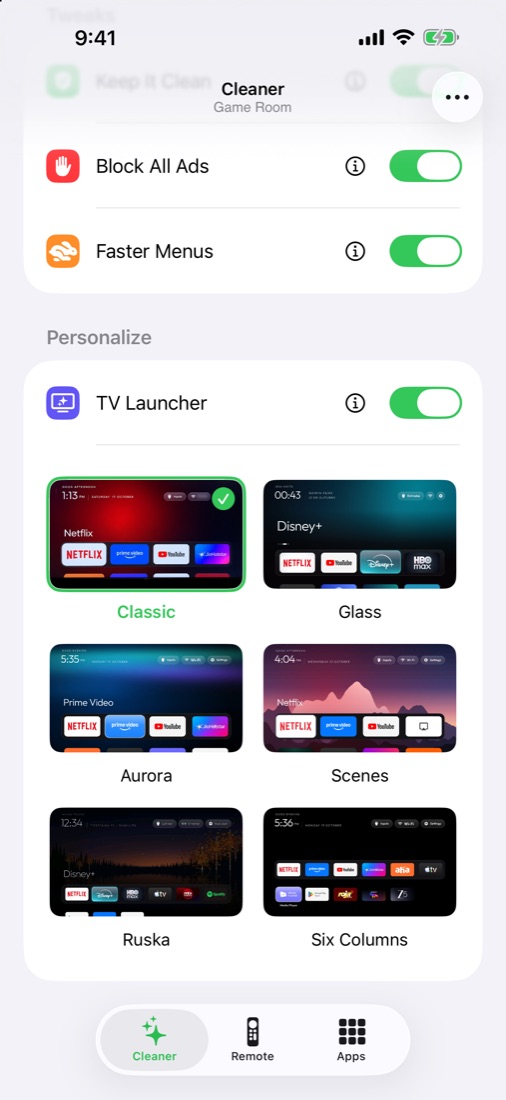
Clean My TV includes its own home screen for Android TV and Google TV, with themes such as Classic, Glass, Aurora and Scenes. The app sets it up from your iPhone over Wi-Fi, without a computer or APK mirrors, and switches the stock home screen back with one tap. The Classic theme is free.
- Google Play: Projectivy Launcher, FLauncher
- Projectivy releases on GitHub; FLauncher source on GitLab
- Android Police: Projectivy override setup (September 18, 2025); XDA: changing the Google TV launcher (June 29, 2026), boot restrictions on newer boxes (September 19, 2026)
- AFTVnews: Amazon blocks custom launchers (February 21, 2022); XDA: Wolf Launcher on Fire TV (January 30, 2026)
- Google TV Help: Apps only mode